
How a Law Firm Automated New-Matter Document Intake
New matters began with email threads, intake forms and mixed client documents. Staff created folders, renamed files, re-entered party details and discovered missing documents after a lawyer started work.
- Proof basisMarket solution story
- IndustryLegal Services
- Year2026
- ServicesWorkflow Automation, System Integration, AI Automation
This is a market solution story built from Chronexa’s research into real businesses, roles, technology stacks and operating problems. It shows how we would engineer the system. It is not presented as a named client deployment, and no unverified savings or performance result is claimed.
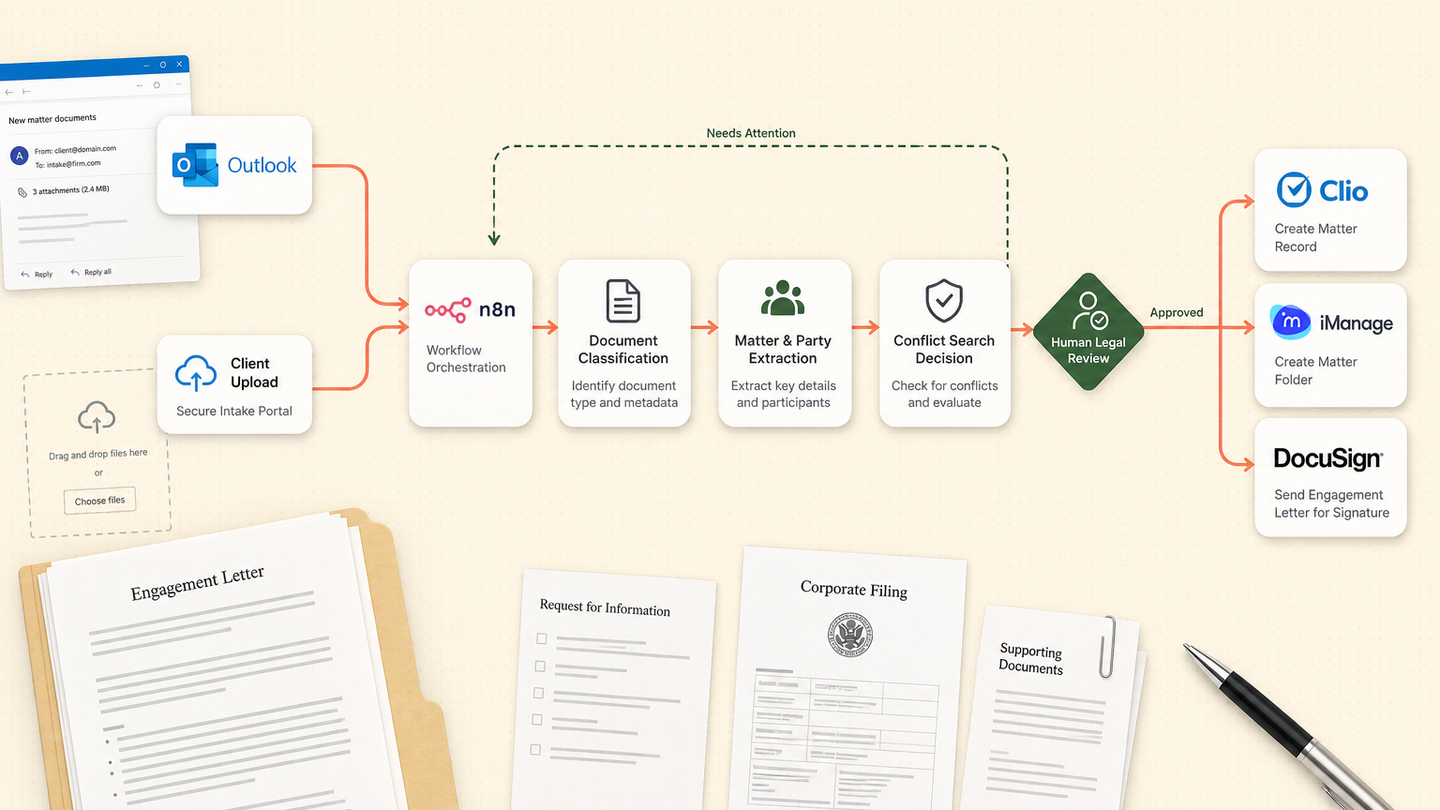
The short answer
We designed a legal intake workflow that captures the form and attachments, extracts parties and matter data, checks required documents, prepares conflict-search terms and creates the approved workspace in Clio or iManage. Lawyers control conflicts and matter acceptance.
Tools and systems used
- Outlook
- n8n
- Azure Document Intelligence
- Clio or iManage
- SharePoint
- DocuSign
Matter opening was a chain of small waits
The firm’s intake information arrived before the matter existed. Staff had to decide where to save it, which names to search and what was still missing. Lawyers received a partial package and sent it back for another round of preparation.
The automation target was a complete, inspectable review package—not automatic client acceptance.
How the workflow runs
- Capture the request
Save the intake form, email and attachments under a temporary matter ID.
- Extract parties and facts
Read names, entities, dates, jurisdiction and requested service with source references.
- Check completeness
Compare the file with the required document list for that matter type.
- Prepare conflict terms
Create a review list of people, entities and related parties.
- Approve the matter
A lawyer or authorised team member completes conflicts and acceptance.
- Open the workspace
Create the matter, folders, engagement package and onboarding tasks.
The system we designed
Outlook and the intake form create a temporary ID. n8n stores the original files and uses document extraction to map parties, dates and document types. Rules compare the package with the matter checklist and prepare conflict-search terms.
After the authorised reviewer records clearance and acceptance, the workflow creates the matter in Clio or iManage, builds the folder structure and prepares the engagement and onboarding tasks.
How the firm would judge it
Measure time from enquiry to review-ready package, missing-document rounds, corrected party names, workspace setup time and matters opened without the full approval record.
Why temporary state matters
Documents need a safe home before a matter can legally be opened. The temporary intake record holds the package and status without pretending acceptance has occurred.
How it differs from knowledge search
This workflow controls the front door of a matter. The knowledge system controls retrieval from approved matters. Keeping the purposes separate makes permissions and audit easier to explain.
Safeguards and failure handling
- The workflow prepares but never clears a conflict.
- Matter creation waits for authorised acceptance.
- Client documents remain in approved storage.
- Extracted parties link to their source pages.
- Missing or ambiguous identities go to review.