How to Build an AI-Powered Lead Generation Machine in n8n
In the current high-velocity B2B market, speed to lead isn't just a metric—it's the difference between a closed deal and a lost opportunity. This tutorial will teach you how to build a production-grade n8n lead generation machine that automates the entire funnel: from the moment a lead hits your site to the second they are scored by AI and routed to your sales team's Slack.
By the end of this guide, you will have a workflow that captures, enriches, scores, and routes leads in under 120 seconds.
Prerequisites
To follow this guide, you will need:
An active n8n instance (Cloud or self-hosted).
API keys for: OpenAI (or Anthropic), Apollo.io (or Clearbit), HubSpot (or your preferred CRM), and Slack.
A basic understanding of JSON and HTTP methods.
Architecture Overview
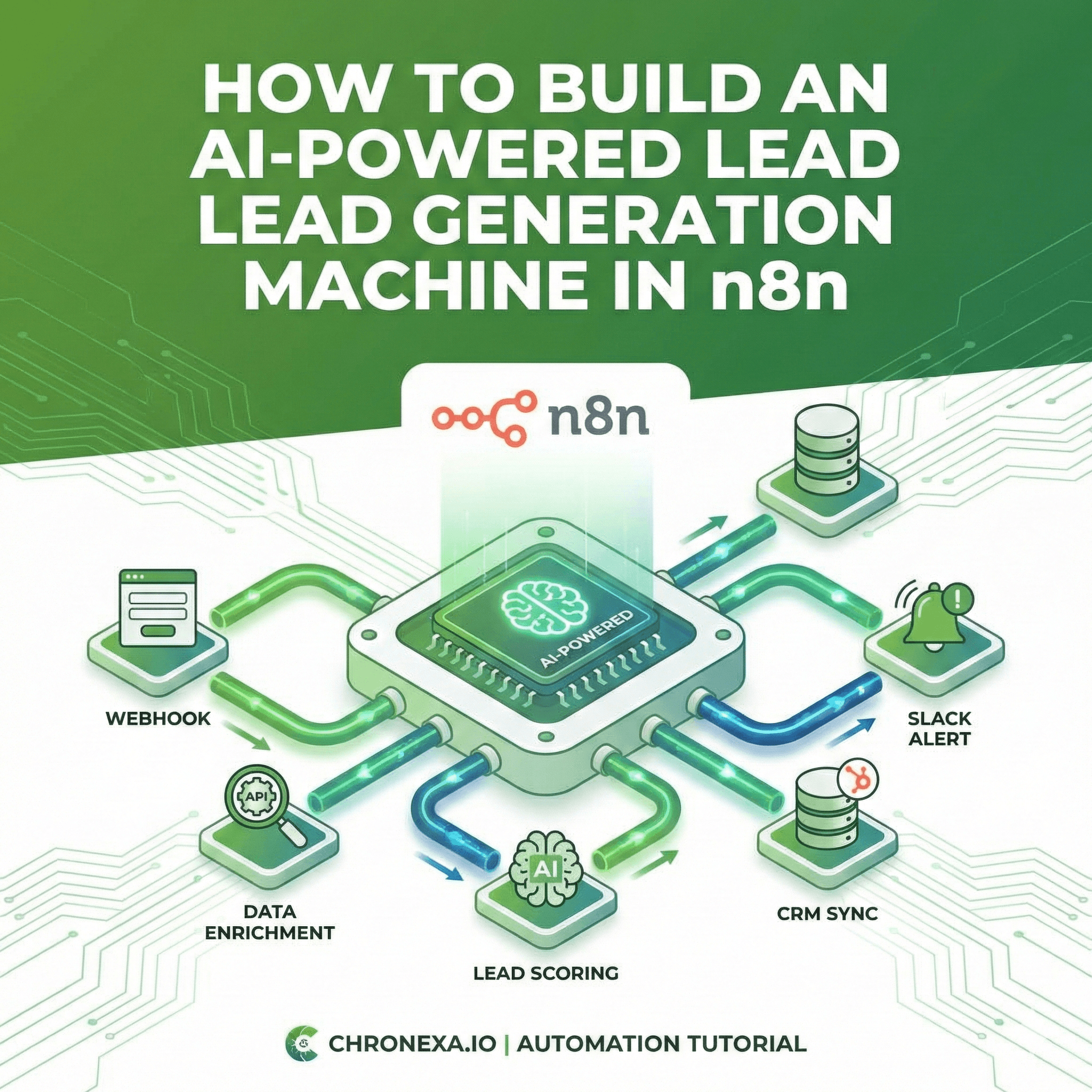
A robust n8n lead generation system is comprised of five distinct stages that ensure data quality and high-intent routing.
Ingestion: Receiving raw data via a Webhook.
Validation: Sanitizing the input to prevent "junk" data from entering your stack.
Enrichment: Pulling firmographic data (company size, industry, revenue) from third-party APIs.
AI Scoring: Using an LLM to evaluate the lead against your Ideal Customer Profile (ICP).
Routing & Notification: Syncing data to the CRM and alerting the right sales rep.
Part 1: Lead Capture and Webhook Setup
Set Up the Webhook Trigger
The entry point of our machine is the Webhook Node. This node provides a unique URL that you can plug into your website forms (Webflow, Typeform, or custom React forms).
Add a Webhook node to your canvas.
Set the HTTP Method to
POST.Use the Test URL for initial setup. Once live, you will switch to the Production URL.
Sample JSON Payload from your form:
JSON
Parse and Validate Lead Data
Before spending API credits on enrichment, we must validate the data. Add a Code Node (or a Filter Node) to check for valid email formats and ensure the "email" field isn't empty.
Example Validation Script (JavaScript):
JavaScript
Part 2: Enrich Lead Data with APIs
Company Enrichment (Apollo.io Integration)
Raw emails tell us very little. We need to know if "Chronexa" is a 2-person hobby or a 50-person agency. We’ll use the HTTP Request Node to query Apollo.io’s enrichment API.
Node Type: HTTP Request.
Method: POST.
URL:
https://api.apollo.io/v1/people/matchAuthentication: Header Auth (Api-Key).
Body Parameters: Map the email from the Webhook node using:
{{ $node["Webhook"].json["email"] }}.
Part 3: AI Lead Scoring
Send Data to AI Model for Scoring
This is where the "machine" gets its brain. We will pass the enriched data to an OpenAI Node to determine if this lead is a "Hot" prospect.
Prompt Template:
"Analyze the following lead data:
Name: {{ $json.name }}
Job Title: {{ $json.title }}
Company Size: {{ $json.company_size }}
Score this lead from 0-100 based on our ICP: B2B companies, >10 employees, in the Tech/SaaS space.
Output ONLY a JSON object: {'score': number, 'reason': 'string'}"
Apply Lead Score Logic
Use an If Node or a Switch Node to route the lead based on the AI's output:
Hot (Score > 70): Immediate CRM creation and Slack alert.
Warm (Score 40-70): Add to a "Nurture" sequence in your email tool.
Cold (Score < 40): Log to database but do not notify sales.
Part 4: Route to CRM and Notify Team
Create/Update CRM Record
Now, we sync the enriched and scored lead to HubSpot.
Add the HubSpot Node.
Select Resource: Contact, Operation: Create or Update.
Map your fields: Email, First Name, Company, and importantly, the AI Lead Score.
Send Slack Notification for Hot Leads
For leads with a score > 70, speed is vital. Use the Slack Node to send a rich message to your #sales-alerts channel.
Dynamic Message Example:
"🔥 New Hot Lead Captured!
Name: {{ $node["Webhook"].json["first_name"] }}
Company: {{ $node["Apollo"].json["organization"]["name"] }}
AI Score: {{ $node["OpenAI"].json["score"] }}/100
Reason: {{ $node["OpenAI"].json["reason"] }}"
Part 5: Error Handling and Monitoring
A production n8n lead generation workflow must be resilient.
Retry Logic: In the node settings for Apollo and OpenAI, enable Retry on Fail (3 attempts, 5-second delay).
Error Workflow: Create a separate "Error Handler" workflow. In your main workflow settings, set this as the Error Workflow. It should notify you if the machine breaks.
Testing and Optimization
Before going live, use the Listen for Test Event feature in the Webhook node and send a request via Postman or your site's staging environment.
3 Optimization Tips
Rate Limits: If processing 1,000+ leads, use a Wait Node between API calls to respect Apollo/OpenAI rate limits.
Caching: Check your CRM for the lead's email before enrichment to save credits on returning visitors.
Parallel Processing: Use a Split in Batches node if you are processing leads from a CSV upload rather than a real-time webhook.
Common Issues and Fixes
Issue | Cause | Fix |
Webhook Timeout | Processing logic takes > 30s | Use the 'Respond to Webhook' node early in the flow. |
AI Output Hallucination | Vague prompting | Use 'JSON Schema' in your OpenAI prompt to force a specific structure. |
API Key Expiry | Subscription limits | Use n8n environment variables to track and alert on low credits. |
Conclusion
Building an n8n lead generation system allows you to act with the speed of an enterprise sales team at the cost of a single software subscription. By automating the "grunt work" of enrichment and qualification, your sales team can spend their time where it matters: closing deals.
Need this built, deployed, and maintained? Chronexa.io specializes in production-grade n8n automation. We'll build this workflow custom for your stack—book a scoping call today.
Ready to eliminate the manual work slowing down your advisory practice?
Chronexa builds custom AI workflows for RIA and wealth management firms — from client onboarding and ADV filing to custody reconciliation and CRM hygiene. Most clients see 60–80% time savings in the first 90 days.
Book a Free 30-Minute Strategy Call →
Written by Ankit Dhiman — Founder & CEO at Chronexa. Ankit leads a lean team of n8n automation engineers building production-grade AI workflows for mid-market B2B companies across fintech, legal, SaaS, and operations. Book a free 30-minute strategy call to see what's possible for your team.
Related Articles
About author
Ankit is the brains behind bold business roadmaps. He loves turning “half-baked” ideas into fully baked success stories (preferably with extra sprinkles). When he’s not sketching growth plans, you’ll find him trying out quirky coffee shops or quoting lines from 90s sitcoms.

Ankit Dhiman
Head of Strategy
Subscribe to our newsletter
Sign up to get the most recent blog articles in your email every week.